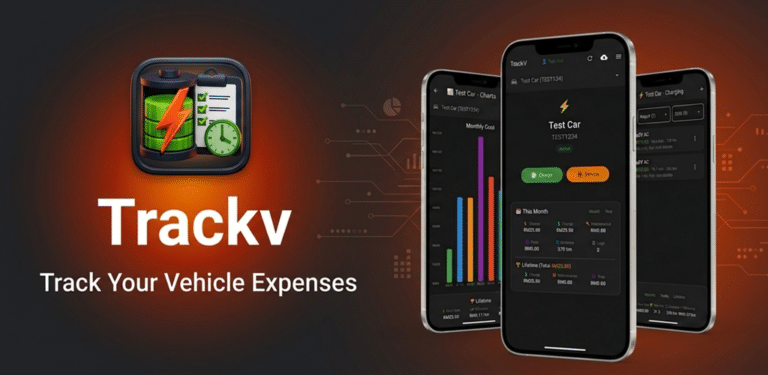
TrackV Help & Guide
Detailed instructions for every feature in TrackV. For Getting Started, Battery Settings, or Contact Support, open the app → Help & Guide.
🎉 LIMITED TIME: 40% off Lifetime Premium until 31 Dec 2026 🎉
Logging Fuel/Charge
- Tap the “Fuel” or “Charge” button on the home screen
- Select the date of the transaction
- Choose the provider/station from the dropdown list
- For custom providers, select “Others” and enter a name (max 50 chars)
- Enter the price/rate and total cost
- Enter the odometer reading (must be higher than last entry)
- Toggle “Full Tank/Charge” if applicable
- For Home charging, the rate auto-fills from your profile settings
- Quantity (kWh/Litres) auto-calculates from rate and cost
- For Home charging, you can manually edit the quantity field
- 💡 Tip: Log every fuel/charge for accurate efficiency tracking
Service Logs
- Tap the “Service” button on home screen
- Choose Maintenance or Tires tab
- Maintenance: Enter description (max 50 chars), service type, cost, odometer
- Tires: Enter brand, size, cost, odometer, and position
- Notes are optional (max 100 chars)
- The service log card shows your current odometer and total KM
- 💡 Tip: Regular service logging helps track maintenance costs
Service Schedule (⭐ Premium)
- Tap “Service Schedule” from the menu
- Tap + to add a new schedule
- Enter the service type (e.g., Oil Change, Brake Service)
- Enter the Next Service KM (must be greater than current odometer)
- Set the next service date
- Set when to be reminded (days before) – default 3 days
- Set when to be reminded (KM before) – default 500 km
- The reminder will trigger whichever comes first: DAYS OR KM
- Both reminders are tracked simultaneously
- Auto-completes 14 days after the due date
- 💡 Tip: Set realistic Next Service KM for accurate reminders
Charts & Analytics
- Tap “Charts” from the drawer menu
- Monthly Cost: See your spending trends
- Provider Distribution: See where you charge/fuel most
- Efficiency Trend: Track cost per km over time
- Service Cost: Breakdown of maintenance vs tires
- Battery Health (EV only): Relative kWh/100km trend vs baseline — 100% is baseline efficiency
- Compare Cars (⭐ Premium): Side-by-side lifetime comparison of two cars — efficiency, spending, distance, service cost
- Switch between cars using the dropdown at the top
- Lifetime summary shows total cost, efficiency, and service cost
- Home screen also shows all-cars total (Nos of cars)
Search (⭐ Premium)
- Open Charts → tap the bar chart icon → 🔍 Search
- Type provider names: “jom”, “ev”, “home”
- Short names work: “jom” finds JomCharge AC + DC
- Type date ranges: “01/04/2026 to 15/04/2026”
- Or use the 📅 button to pick dates visually
- Time keywords: “this year”, “last 3 months”, “lifetime”
- Filter by cost: “>50”, “<20”
- Filter by type: “tyres”, “service”, “maintenance”
- Combine filters: “jom 2026 >20”
- Recent searches show when the field is empty
- 💡 Tip: Tap Enter from the search box to save a query to Recent
Profile
- Tap your name at the top of the home screen to access Profile
- Update your name, email, and date of birth
- Date of Birth is required for password recovery
- Set your home electricity rate for accurate home charging costs
- Change your password anytime
- Lifetime Premium owners see a badge confirming their status
- ⭐ Upgrade to Premium directly from Profile if you are on the free tier
- Backup your data before logging out
Backup & Export
- Guest & Non-Premium: Data saved locally only
- Premium (Lifetime): Cloud backup enabled with auto-backup
- Backup automatically when app is backgrounded
- Use “Backup Now (Cloud)” for manual cloud backup (Premium)
- Use “Restore from Cloud” to recover data (Premium)
- Local CSV export/import is FREE for everyone
- Export CSV for local backups (all data including dates & schedules)
- Import CSV to replace data
- Download the CSV template for correct formatting
- ⚠️ Do not edit CSV headers before importing
- 💡 Tip: Backup regularly to prevent data loss
Guest vs Premium
- Guest: Free, local data only, no cloud backup, no notifications
- Registered Non-Premium: Same as guest — local data only
- ⭐ Premium: One-time payment, lifetime access, cloud backup enabled
- Premium features: Cloud Backup, Service Schedule, Road Tax & Insurance reminders, Notifications
- 💰 Pay once, use forever — no subscriptions, no renewals
- Upgrade anytime without losing data
- Restore your purchase on any device with the same Google account
- Premium includes automatic cloud backup and data security
- 💡 Tip: Upgrade to Premium for peace of mind
Notifications (⭐ Premium)
- Service reminders can trigger by DAYS or KM
- Days reminder: “Service Type is due in X days!”
- KM reminder: “You have X km before next Service Type”
- 🆕 Road Tax & Insurance reminders fire at 30, 14, 7, and 0 days before expiry
- Tap any notification to open a detailed dialog box
- Configure notification preferences in Settings
- Choose frequency for monthly usage and efficiency summaries
- Enable/disable individual notification types
- 💡 Tip: Enable notifications to never miss a service
Account & Purchase
- Your Lifetime Premium purchase is tied to your Google account
- Reinstalled the app? Tap “Restore Purchases” on the Upgrade screen
- No refunds are issued directly by us — Google Play handles all refunds
- To request account deletion, visit your Profile screen
- Deletion removes all your data from our servers within 7 business days
- Email: ooknime@gmail.com for purchase or account questions
Tips & Best Practices
- Use the car dropdown selector to switch between vehicles
- Data is saved locally even without internet
- Backup your data regularly using cloud or CSV export
- Log fuel/charge immediately to track accurate costs
- Regular odometer readings help track efficiency
- Use the “Full Tank/Charge” toggle for accurate logs
- Set realistic Next Service KM for service schedules
- KM-based reminders are great for high-mileage drivers
- Days-based reminders work best for time-sensitive services
- ⚠️ On multi-device use, always backup and restore
Troubleshooting
- Check internet connection for cloud backup/restore.
- If purchase doesn’t unlock Premium, tap “Restore Purchases”.
- Notifications require permission – check your device settings.
- If notifications stop, restart the app.
- Backup to cloud or export CSV as a backup before major changes
- Contact support if you encounter persistent issues.
TrackV Full Help & Guide · Last updated: November 2026
For Getting Started, Battery Settings, or Contact Support, open the app → Help & Guide.